•
•
CSV Batch Payment Upload for SME Payroll in the UK
Running payroll is one deadline a business cannot miss. When a salary does not arrive on time, it damages employee trust immediately — and in small teams, it usually lands on the founder or finance manager to explain why.
CSV batch payment upload for SME payroll is the method most UK business accounts and EMI providers use to release multiple salaries in a single file submission, replacing manual bank entry row by row. This guide covers the file logic, common errors, payment rail choice, approval controls, and account considerations that determine whether a payroll run goes out cleanly — or needs rework the morning after payday.
This is a payment execution guide. It does not cover payroll calculation, gross-to-net processing, or HMRC PAYE reporting and RTI submission, which remain separate legal obligations (GOV.UK).
What Fields Go in a UK Payroll CSV?
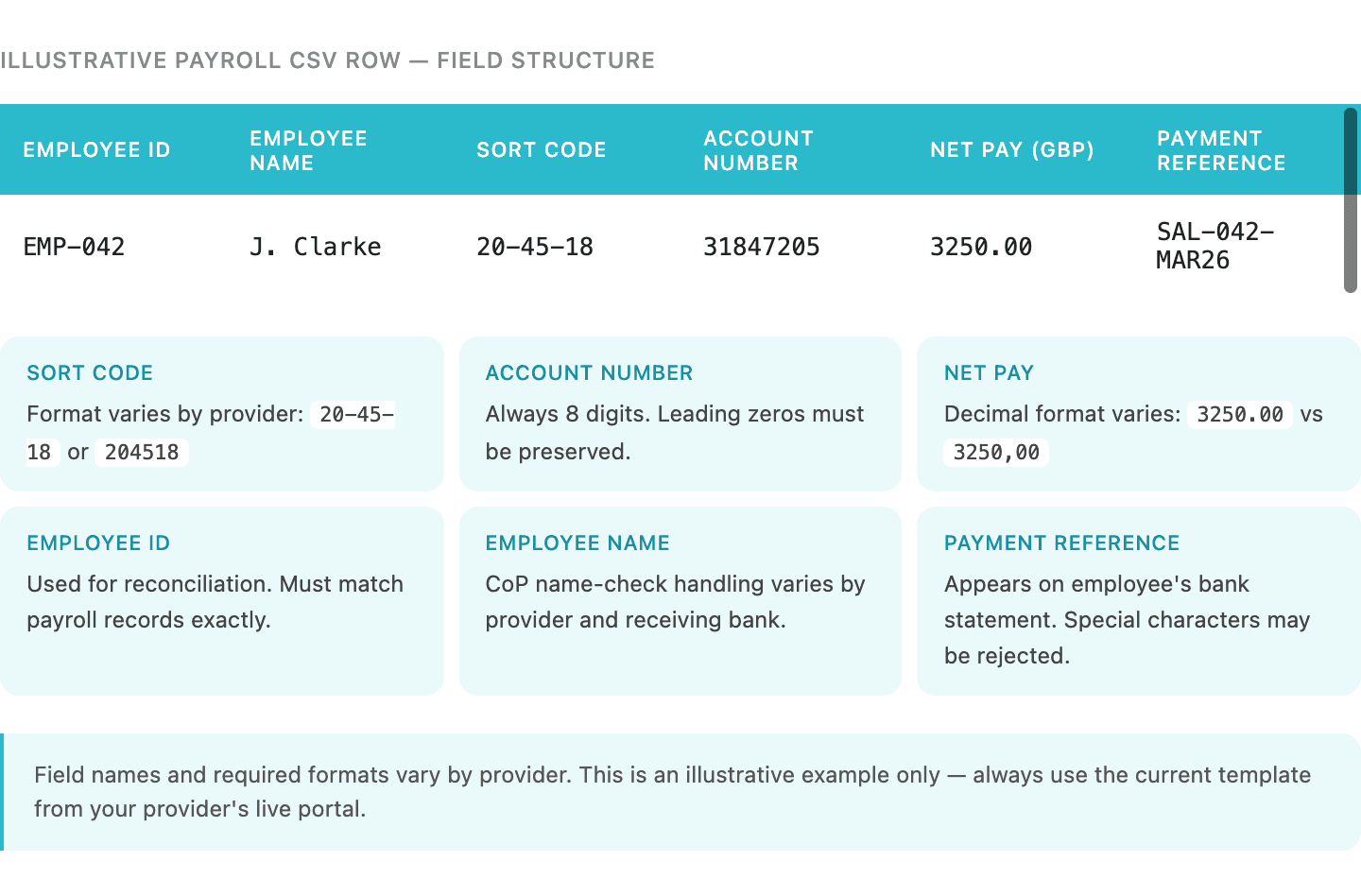
A UK payroll CSV typically contains six to eight fields per row. The exact column names, formats, and mandatory fields are set by the provider — not by a UK-wide standard.
Most templates include variations of the following:
Field | Purpose | Common format issues |
|---|---|---|
Employee name or ID | Row identification and reconciliation | Name format mismatch with Confirmation of Payee checks |
Sort code | UK bank routing | Format varies: 00-00-00 vs 000000 |
Account number | Destination account | Must be 8 digits; leading zeros matter |
Net pay amount | GBP salary disbursement | Decimal format varies by provider (1234.56 vs 1234,56) |
Payment reference | Appears on employee statement | Character limits and special character rules vary |
Payment date | Value or processing date | Date format: DD/MM/YYYY vs YYYY-MM-DD — provider-specific |
This is an illustrative field set. HSBCnet requires file-upload capability to be administrator-enabled before any submission, and its specification guide sets precise field positions and character constraints (HSBCnet). Revolut Business accepts CSV, XML, and BACS formats for local UK bulk payments with a 1,000-entry cap per file (Revolut). Wise provides downloadable batch templates supporting up to 1,000 payments per upload (Wise, limits as of March 2026).
The rule is simple: download the provider's current live template from the portal, not a saved copy from a previous cycle or another provider.
Common Payroll CSV Upload Errors and How to Fix Them
Most payroll batch failures are caused by preparation errors, not platform failures. The majority are preventable.
Template mismatch — uploading a file built on the wrong provider template, a saved old version, or a supplier-payment template. Fix: download the current template from the live portal immediately before building the file.
Date format error — using DD/MM/YYYY when the provider expects YYYY-MM-DD, or vice versa. Fix: confirm the provider's required format and apply it across every row.
Sort code format mismatch — some providers require 00-00-00 format; others require 000000. A consistent format across the file is essential.
Invalid account number — eight digits are required. Account numbers with fewer digits or leading zeros stripped will fail validation.
Stale employee bank details — an employee who changed bank accounts and did not update payroll records. Fix: run a bank detail verification step before each cycle, not just at onboarding.
Rejected-line misunderstanding — a line may be rejected at the provider's validation stage for format reasons, or post-submission for payment-level reasons such as the receiving account being closed. Note that account name mismatch is not a universal rejection trigger: Confirmation of Payee is an overlay service, and how name-check failures are handled varies by provider and receiving bank (Pay.UK).
Insufficient cleared funds — the batch is submitted but the account does not hold enough funds to cover all rows. Resolution depends on provider logic; some hold the full batch, others process partial.
No authoriser available — the upload is ready but the designated approver is unavailable. Fix: confirm authoriser availability as part of the pre-run checklist, not on the day.
Faster Payments vs Bacs for Payroll Timing
Choose Faster Payments for same-day or urgent payroll. Choose Bacs Direct Credit for planned monthly cycles where 3-working-day processing is acceptable.
Faster Payments | Bacs Direct Credit | |
|---|---|---|
Typical settlement | Near-instant at scheme level | ~3 working days |
Operating hours | 24/7 including weekends and bank holidays | Working days; overnight processing cycles |
Payroll use case | Same-day salary runs, urgent corrections, holiday-adjacent pay dates | Planned monthly payroll where timing is predictable |
Submission cut-off | Provider-level cut-offs apply; confirm with your provider | Bacs input cycle deadlines apply; submit 3 working days before pay date |
Two clarifications matter here. Faster Payments operates 24/7 at scheme level, but individual providers apply their own submission cut-offs and per-transaction or per-batch limits (Pay.UK). "Near-instant" describes scheme-level timing; a provider processing window or receiving bank clearing step may add a short delay. Bacs Direct Credit is widely used for traditional bulk payroll; the authoritative source for PAYE payment timing obligations is GOV.UK's PAYE guidance, not generic payment-method pages (GOV.UK).
Step-by-Step: How to Run Payroll via CSV Upload on a UK Business Account
Step 1. Finalise payroll data before building the file
Build the CSV only after payroll is approved and net amounts are confirmed. Required inputs:
Confirmed net pay amounts — gross-to-net calculation signed off, not draft figures
Validated employee bank details — sort code, account number, name, including any changes from the prior cycle
Starter and leaver updates — new employees added, departures removed
Payment date confirmed — checked against the chosen rail's timing and the provider's cut-off
Funding availability — cleared balance confirmed before upload, not assumed
Payroll platforms such as BrightPay and Staffology include bank file export functions that output employee payment data in a structured format (BrightPay). The export from payroll software and the upload template required by a bank or EMI portal are not the same file. These are two separate steps with two separate format requirements.
HMRC's Full Payment Submission must be filed on or before payday through RTI-compatible payroll software. CSV upload to a payment portal does not fulfil this obligation (GOV.UK).
Step 2. Build and validate the CSV against the provider template
Download the current template from the provider portal. Populate each row. Before upload, check:
Date format matches provider specification exactly
Sort codes are formatted correctly (with or without hyphens, as required)
Amount field uses the correct decimal format
Reference fields contain no unsupported characters
File does not mix currencies unless the provider explicitly supports this in a single batch
Step 3. Upload, validate, and approve in the portal
The typical sequence:
Finance manager uploads the file in the bulk payment or payroll section of the portal
Portal parses rows and runs validation — format errors, unrecognised sort codes, and missing fields are flagged
Validation results are reviewed — a partial pass lists flagged lines; a full-file rejection requires rebuilding
A second authorised user (checker) reviews the validated batch and approves release
Batch is submitted to the payment rail
Confirm that file-upload permissions are active before the live payroll date — not on the day. Some providers require an administrator to enable bulk-upload functionality separately. The authoriser must be available with the correct permission level before submission.
Step 4. Release and monitor
Once approved, the batch is dispatched via the chosen rail. Monitor for confirmation of dispatch and track any post-submission rejections. A rejected line at this stage — for example, a closed receiving account — requires a separate single-payment correction, not a re-upload of the full batch.
Step 5. Reconcile the run
Match the provider's transaction report against approved payroll records:
Total debited matches sum of all approved net pay amounts
Each payment reference corresponds to the correct employee
No duplicate rows processed
All rejected lines documented with reason codes and assigned to a correction owner
💡 Is your current account payroll-ready?
Before your next pay run, confirm that your bank or EMI supports CSV file upload, designated authoriser roles, and the payment rail timing your payroll date requires. One missing permission discovered on payday creates avoidable delay.
See whether EQWIRE fits your payroll workflow →
How to Choose a Payroll-Ready UK Business Account
The account that works for general business spending is not always the account that supports a repeatable CSV payroll workflow.
The operational questions to ask before committing a live payroll run to any bank or EMI:
Requirement | Why it matters |
|---|---|
CSV file upload enabled | Not all accounts support batch upload; some require admin activation |
Maker-checker authorisation | Dual approval is a standard payroll governance requirement |
Faster Payments access | Required for same-day or weekend payroll dates |
Bacs Direct Credit access | Required if the business uses planned 3-day cycle payroll |
Per-batch and per-transaction limits | Must accommodate the full payroll amount in a single file |
Rejected-line handling | Some providers hold the entire batch; others process the clean rows |
Audit log and export | Required for reconciliation and finance record-keeping |
Providers including Monzo Business and Starling Bank position bulk payment tools directly as a solution to manual salary-entry errors, which signals that demand for this workflow is mainstream, not specialist (Monzo, Starling Bank). High-street bank portals such as HSBCnet typically require feature activation and provide detailed file specification documentation before first use.
The right question is not which provider is best in general — it is whether the specific account the business holds today supports the workflow it needs to run. Verify before payday.
Can an EMI Account Run UK Payroll via CSV Batch Upload?
Yes — where the EMI supports UK local payment rails, file-upload functionality, and the approval controls the business requires. These features must be confirmed, not assumed.
An Electronic Money Institution (EMI) is an FCA-regulated firm authorised to issue electronic money and provide payment services. EMIs are not deposit-taking banks. Client funds held at an EMI are safeguarded — held in segregated accounts or covered by an insurance policy — rather than covered by FSCS deposit protection, which applies only to eligible deposits at authorised banks and building societies (FCA).
For a UK SME evaluating an EMI for payroll, the relevant questions are:
Does the EMI hold a UK sort code that can originate Faster Payments and Bacs transactions?
Does the portal support CSV batch upload with role-based permissions?
What are the per-batch and per-transaction limits for domestic GBP payments?
What is the rejected-line handling logic?
What are the onboarding and compliance requirements, and how long does activation take?
EQWIRE is an FCA-authorised EMI — FRN 901100, verifiable on the FCA register. Full regulatory and safeguarding details are set out on EQWIRE's Important Information pages. EQWIRE provides access to UK local payment rails including Faster Payments, within a multi-currency account structure designed for businesses that also manage international payments.
This structure may suit:
UK SMEs that process monthly GBP payroll alongside multi-currency supplier or client payments
Non-UK businesses operating with UK employees that need GBP local payment infrastructure — see EQWIRE's guides to opening a GBP account as a non-UK company and Faster Payments access for offshore companies
Finance teams that need approval controls and reconciliation tooling alongside domestic rails
It is not a fit for every business. A company whose only payment need is domestic UK payroll, already well served by a high-street bank with established payroll upload tooling, may not need to change infrastructure. The decision should be driven by whether the current account covers the operational requirements listed above — not by provider category alone.
💡 Does your payroll setup need UK local rails, approval controls, and multi-currency support in one account?
Review the account structure, confirm compliance eligibility, and compare against your payroll workflow requirements before switching.
Pre-Run Checklist for CSV Payroll Upload
Data and file
[ ] Payroll totals approved and signed off — net pay only, not gross
[ ] Employee bank details verified, including any changes since the last cycle
[ ] Starters added, leavers removed, bank changes confirmed with evidence
[ ] Current template downloaded from the live provider portal this cycle
[ ] Date format, sort code format, amount format, and reference character rules checked
Account and permissions
[ ] File-upload permission confirmed as active for the submitting user
[ ] Authoriser identified, available, and confirmed as holding the correct portal permission level
[ ] Cleared funds sufficient to cover the full payroll amount
Timing and rail
[ ] Payment date confirmed against provider cut-off for the chosen rail
[ ] Pay date checked against bank holidays if using Bacs
Exception handling
[ ] Correction and reissue process defined for any rejected lines
[ ] Reconciliation owner assigned with access to the post-batch transaction report
[ ] Audit log export or retention confirmed in the portal
[ ] HMRC FPS submission confirmed as a separate task, not part of this workflow
FAQ
How do SMEs upload a CSV file to run payroll payments in the UK?
Approve payroll net amounts, then download the provider's current template. Populate each employee's sort code, account number, net pay, and reference. Upload in the portal, pass row-level validation, have an authorised user approve the batch, and release via Faster Payments or Bacs. After release, reconcile the transaction report against payroll records and manage any rejected lines through a defined correction process. Steps vary by provider.
What CSV file format is used for SME payroll batch payments in UK Faster Payments?
There is no single UK-wide standard. Each provider publishes its own template. Common fields include sort code, account number, net pay amount, payment reference, and value date — but column names, date formats, mandatory fields, and file-size limits differ by provider. HSBCnet publishes a detailed file specification guide; Revolut Business documents its accepted formats and batch limits in its help centre. The only safe rule is to use the current template from the live portal (HSBCnet, Revolut).
Can SMEs run payroll via CSV batch upload on a UK EMI account?
Yes, where the EMI holds UK local payment rail access, supports file upload with role-based permissions, and the business has completed onboarding. EMIs are FCA-regulated and must safeguard relevant client funds — this is distinct from FSCS deposit protection at banks. Verify that the specific EMI supports payroll batch upload, maker-checker authorisation, and the required payment timing before committing a live run (FCA).
Is Faster Payments or Bacs better for SME payroll batch payments?
Faster Payments suits same-day payroll, urgent corrections, or pay dates near bank holidays — it operates 24/7 and typically settles near-instantly at scheme level. Bacs Direct Credit suits planned monthly cycles where 3-working-day processing is operationally acceptable and cost efficiency matters. Individual provider cut-offs apply on both rails; confirm submission windows with the provider before payday (Pay.UK).
What happens if a payroll line fails after CSV upload?
A rejected line should be corrected and reissued as a standalone payment — not by re-uploading the full batch, which risks duplicating lines that already processed. Identify the reason (invalid bank details, format error, or post-submission account-level rejection), correct the record, obtain re-approval, and reissue. Note that account name mismatch is not a universal rejection trigger; Confirmation of Payee handling varies by provider and receiving bank (Pay.UK). Log the full exception sequence for the audit trail.
Reviewed by





Power your payments
with EQWIRE
Create your account in minutes and experience smooth, secure global payments.
" height="9.0156px" id="LIcbdboyB" transform="translate(4.987 4.5)" width="9.01562px"/></svg>)